
.png)
.png?width=1200&height=500&name=Blog%20Images%20(4).png)
Microsoft Windows 10 support has now ended. There are a few ways to continue to safely use it. Microsoft offers Extended Security Updates (ESU). There is both a business and a consumer program. The business program is straightforward; one simply purchases access, and as a Microsoft Cloud Service Provider (CSP), iuvo is able to sell this. The consumer side is a little more complicated, in that there are two no-cost options and one paid option. For our European readers, it is also possible to obtain ESU access for no cost, without the conditions required for access in other parts of the world.
There are also many guides on the Internet for installing Microsoft Windows 11 on non-supported hardware. Microsoft hasn’t commented about this approach one way or another. As outlined in an earlier blog, this author has had mixed results.
Today, we are going to look at another use for non-Windows 11-supported computers: installing Linux. There are many different “distributions” of Linux with different support options, look and feel, hardware requirements, and optimal usage scenarios. We are going to choose Debian Linux 13, with the Xfce desktop environment, for the following reasons:
Debian 13 was released on August 9, 2025, with initial support ending in three years on August 9, 2028 and extended support ending June 30, 2030, so the system's life will be greatly extended without much effort.
Xfce is “lightweight” and can be customized to work similarly to Microsoft Windows.
Debian is a popular Linux distribution that most Linux users are likely to have some experience with.
Software
As we are switching to Linux, there are some changes to the software we will use, as a general mapping:
- Microsoft Word -> LibreOffice Writer
- Microsoft Excel -> LibreOffice Calc
- Microsoft PowerPoint -> LibreOffice Impress
- Microsoft Access -> LibreOffice Base
- Microsoft Visio -> LibreOffice Draw
- Microsoft Outlook -> Mozilla Thunderbird
We will also install Google Chrome and Microsoft Edge web browsers, in addition to the default Mozilla Firefox.
Installation
To start, we need to download the Debian software, and this is completely free of charge, from here:
https://cdimage.debian.org/debian-cd/current/amd64/iso-dvd/
At the time of this writing, the download file looks like this:
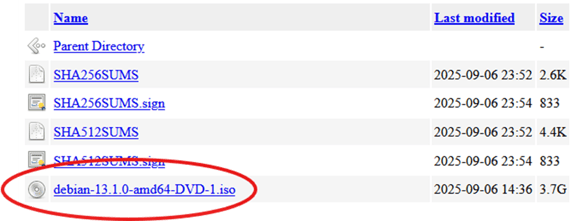
Once we have the file, we need to write it to a USB memory stick to install from. There are a number of tools we can use for this, and in this blog, we will use Rufus, which can also be downloaded free of charge from here:
We will download the top version listed here:
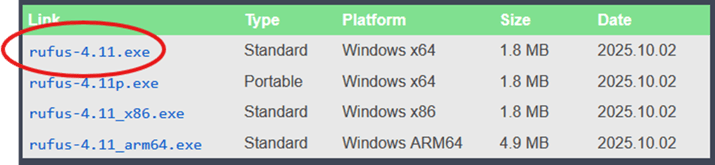
USB Boot Stick
Please insert a USB memory stick with a minimum of 4 GB of storage, that you can completely ERASE. Once you have that plugged into your PC, we will run Rufus, select the Debian ISO we downloaded above and you may get a message “DBX update available”, to which you can select “Yes”:

Then click START and OK (writing in ISO Image mode works):

If you get a “Download required” on the version of Grub, select Yes
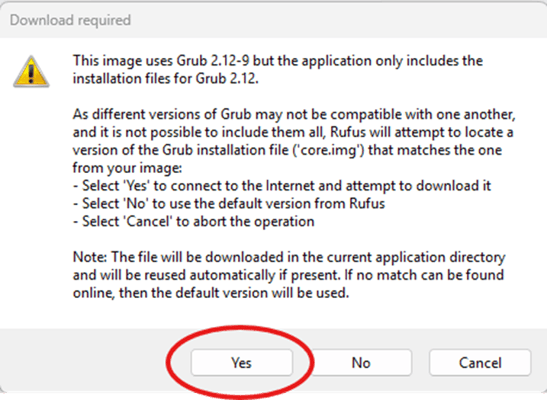
And yes again to Syslinux
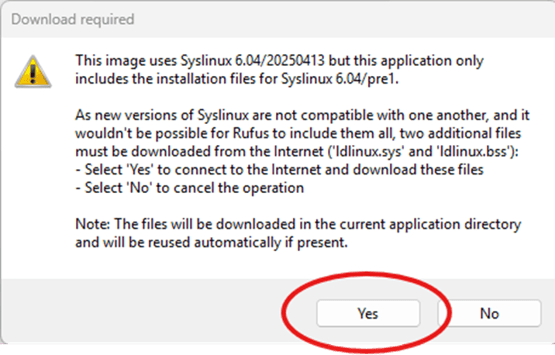
And then OK, acknowledging that the USB stick is about to be completely erased:
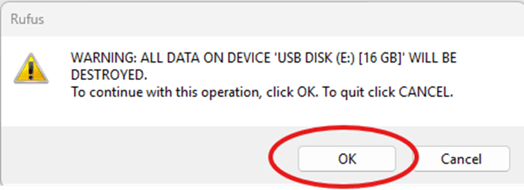
At this point, the Debian software should be loading onto the USB stick; this may take a long while, and that is normal.
Backup Data
Before continuing, the process will ERASE the hard drive of your computer. You MUST BACKUP ALL FILES you want to keep before proceeding. Copying the C:\Users\{username} folder to an external hard drive is one option that can be used to back up data. There are other methods as well, just note this is the MOST IMPORTANT STEP, and don’t go any further unless you have a good backup. Also, please do a test restore of the backed-up data. Until the restore has succeeded, there is NO BACKUP.
BIOS
After the USB stick has completed being setup, you will need to check the BIOS settings on the computer you are installing Debian on. If you plan to run a standard kernel, and if you don’t know that that is, the answer is YES, to don’t need to worry about Secure Boot, as Debian supports that. Another setting to check is under storage, if it is set to RAID or AHCI. Linux works best when set to AHCI, and that is what we recommend. Finally, in Boot options, make sure booting from USB devices is enabled. Unfortunately, there are many different BIOS configuration screens with different types of computers, so it may require some searching for your particular computer. Additionally, accessing the BIOS and booting from USB is also different on different computers. At power on pressing F12, F10, F2, or DEL often works.
Debian Load
Now we are ready to begin loading Debian Linux on the fully backed up (right, right?) computer. It is best to start with the computer in a powered-off state, insert the USB stick from above (if you backed up to another USB device, make sure that it is disconnected from the computer), and turn the computer on by pressing the correct key, like F12, to select another boot device. You will get a screen that looks like this:
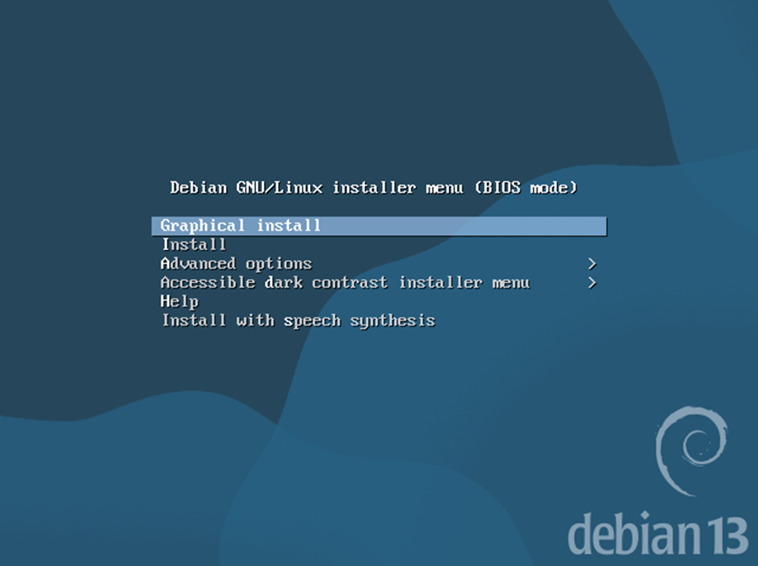
Please select Graphical install, then select your language, location, keyboard language, and wait while modules are loaded. Then select a hostname for your computer. In this case, we will stay with the default “debian” and then the domain name.
Next, leave the Root password blank – by not providing a Root password, the account you setup below will have “sudo” rights to perform administration when needed.
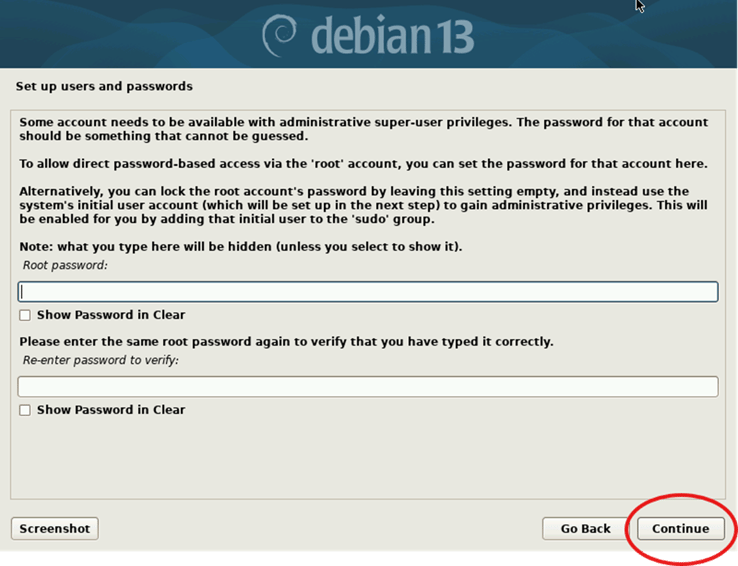
Just select Continue
After the Root user setup, you will be prompted for your full name, to create a regular user account, then a username, and finally a password.
Then select the correct time zone for your location.
In the partition disks section, choose “Guided – use entire disk”
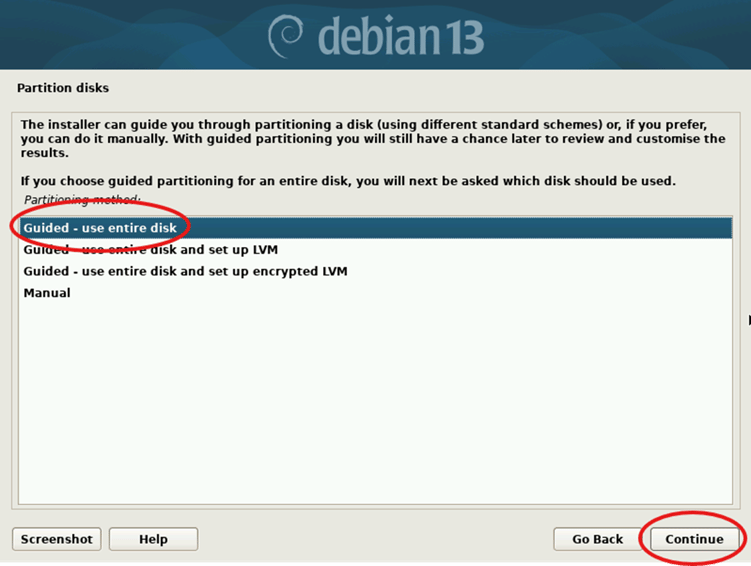
Select the disk, and then select “Separate /home partition”, which will keep your files separate from the Debian operating system.
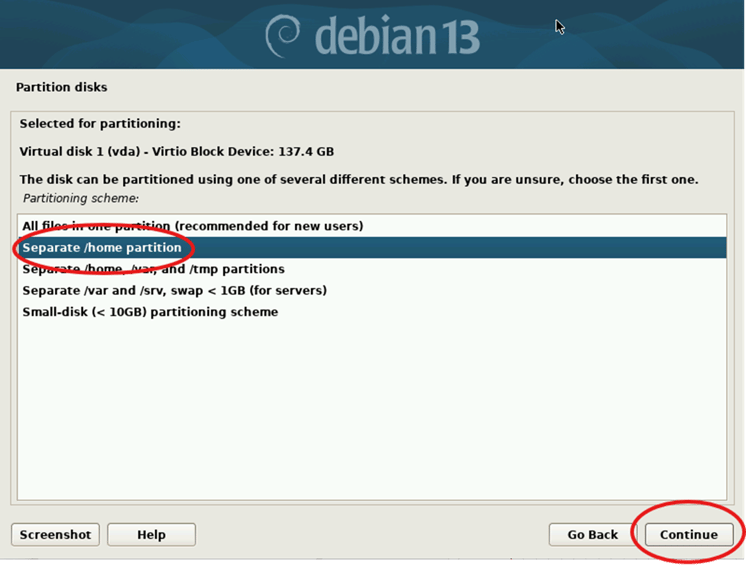
Then select “Finish partitioning and write changes to disk”. Select Yes and Continue.
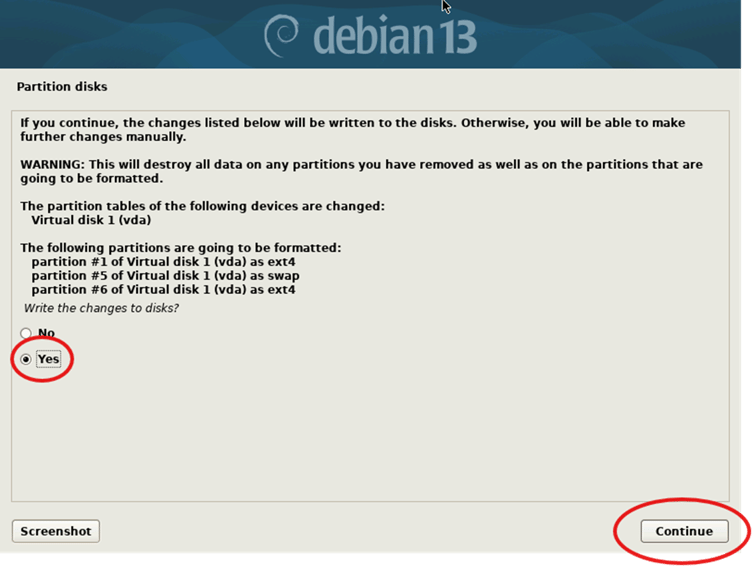
The system will then confirm that all data on the disk will be erased, and you have the backup, correct? If you do have a backup, select Yes and Continue.
You will be asked to scan for additional media, and you can choose “No” here and Continue.
Next, you are asked to “Configure the package manager” and use a network mirror. Here, you should choose “Yes” and Continue. Then select your location and the mirror to choose. You can select the defaults and Continue.
For the “popularity contest”, choose “No” and continue.
- Now we are at the Software selection, for this blog, uncheck GNOME, and select:
Debian desktop environment - Xfce
- SSH server
- standard system utilities
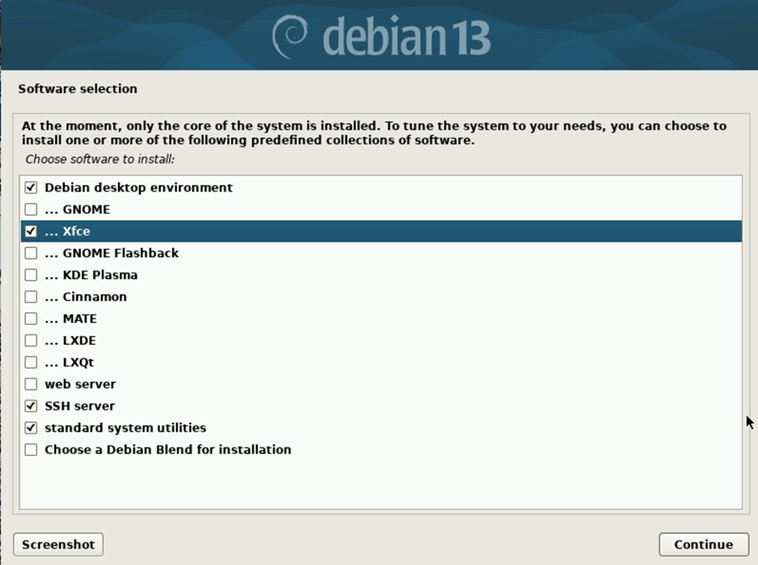
and continue, this part may take a long while, depending on your particular computer and Internet connection speed.
Next, you will be asked to install the GRUB boot loader, select “Yes” and continue. Then select your disk, something like /dev/sda, and continue.
At this point, the installation is complete, and you should remove the USB stick and select continue.
The computer will now reboot into your shiny new Debian Linux system.
Enter the username and password you configured earlier.
Now you will have a desktop that looks nothing like Windows, maybe more like a poor version of Mac OS X from 2000. We will fix that.
Customize the Debian system
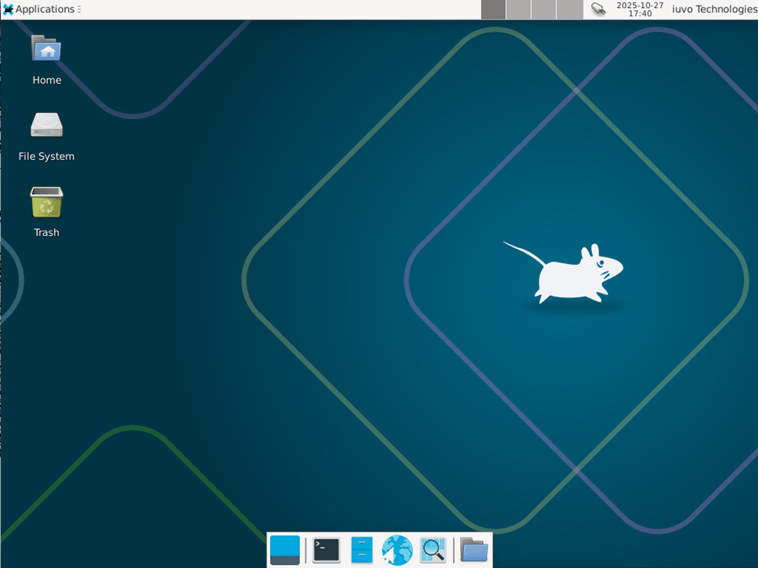
First, we are going to do some housekeeping tasks. Unfortunately, the easiest way to handle the next step is with the Terminal
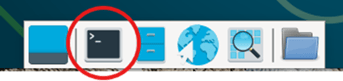
Type the following commands:
wget https://github.com/iuvonauts/DebianLinuxDesktop/raw/refs/heads/main/script1.sh
sudo bash script1.sh
What we are doing is running script1.sh with elevated permissions to install additional software on the new Debian setup.
The contents of script1.sh are:
sed -i '/^deb cdrom:/s/^/#/' /etc/apt/sources.list
apt-get update
apt-get -y upgrade
apt-get -y install thunderbird variety tmux btop dnsutils x11vnc libreoffice-base
apt-get -y install gimp gimp-help-en aisleriot gnome-mines curl wget screen
apt-get -y install printer-driver-hpcups printer-driver-cups-pdf
cd /tmp
wget https://dl.google.com/linux/direct/google-chrome-stable_current_amd64.deb
apt-get -y install /tmp/google-chrome-stable_current_amd64.deb
rm -f /tmp/google-chrome-stable_current_amd64.deb
curl https://packages.microsoft.com/keys/microsoft.asc | sudo gpg --dearmor > microsoft.gpg
install -o root -g root -m 644 microsoft.gpg /etc/apt/trusted.gpg.d/
sh -c 'echo "deb [arch=amd64] https://packages.microsoft.com/repos/edge stable main" > /etc/apt/sources.list.d/microsoft-edge-dev.list'
rm -f microsoft.gpg
apt-get update
apt-get -y install microsoft-edge-stable
Now type these two commands:
wget https://github.com/iuvonauts/DebianLinuxDesktop/raw/refs/heads/main/script2.sh
bash script2.sh
Unlike with the first script, we are running script2.sh without elevated permissions, and we are downloading themes to customize the desktop with.
The contents of script2.sh are:
mkdir -p ~/.local/share/themes
mkdir -p ~/.local/share/icons
mkdir -p ~/.local/share/fonts
mkdir temp
cd temp
wget https://github.com/B00merang-Project/Windows-10/archive/refs/tags/3.2.1.tar.gz
wget https://github.com/yeyushengfan258/We10X-icon-theme/archive/refs/heads/master.zip
wget https://github.com/ryanoasis/nerd-fonts/releases/download/v3.4.0/CascadiaCode.zip
wget https://github.com/ryanoasis/nerd-fonts/releases/download/v3.4.0/CascadiaMono.zip
unzip ./master.zip
cd We10X-icon-theme-master
./install.sh
cd ~/.local/share/themes
tar zxvf ~/temp/3.2.1.tar.gz
cd ~/.local/share/fonts
unzip ~/temp/CascadiaMono.zip
rm -f LICENSE
rm -f README.md
unzip ~/temp/CascadiaCode.zip
rm -f LICENSE
rm -f README.md
cd ~
rm -rf temp
Now we can also clean up the script1.sh and script2.sh files and then close the terminal:
rm -f script1.sh script2.sh
exit
Customize the Desktop
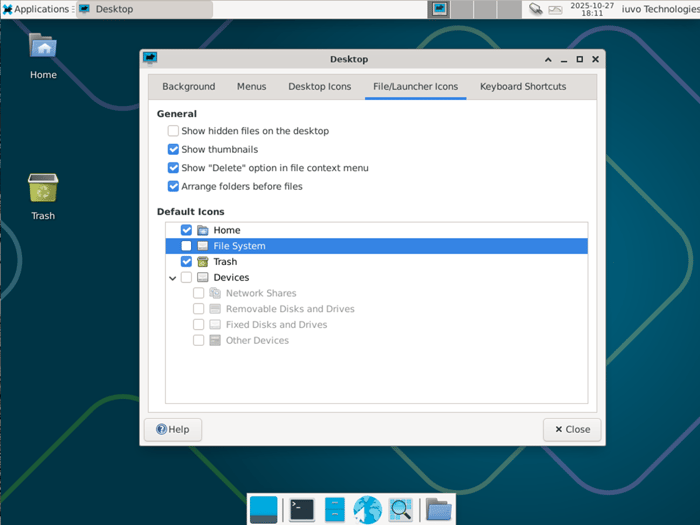
First, we will clean up desktop icons – right click the desktop and select Desktop Settings… and File/Launcher Icons, then unselect File System, and Devices, then select Close
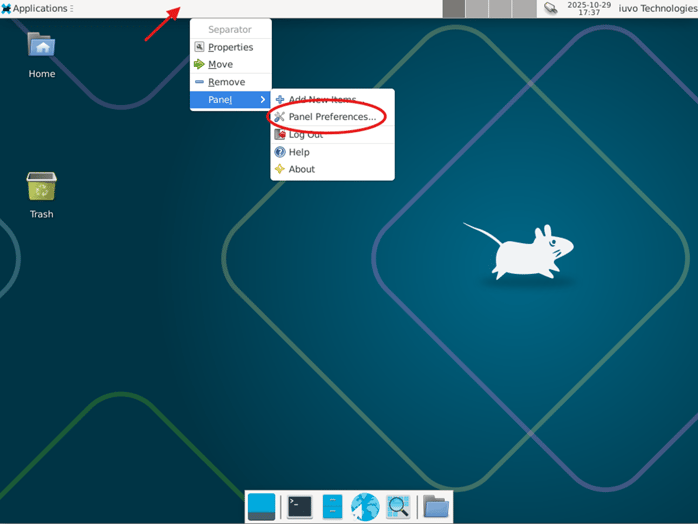
Next, we will adjust the panels to look more like Windows 10. Right-click the panel at the top, indicated by the red arrow and choose Panel and Panel Preferences...
Select Panel 2 and then the “-“ button; this will remove the lower panel.
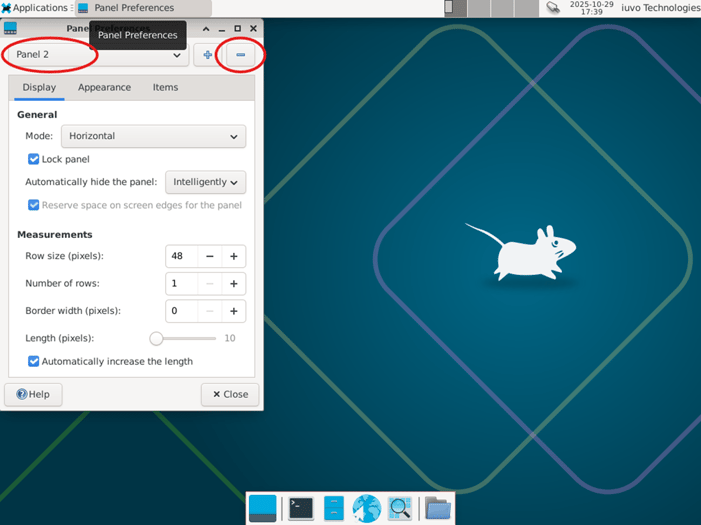
Next, uncheck the “Lock panel” option
This allows us to move the panel down to the bottom by clicking the dots to the left of “Applications” and dragging it to the bottom.
Then change the Row size (pixels): from 26 to 46.
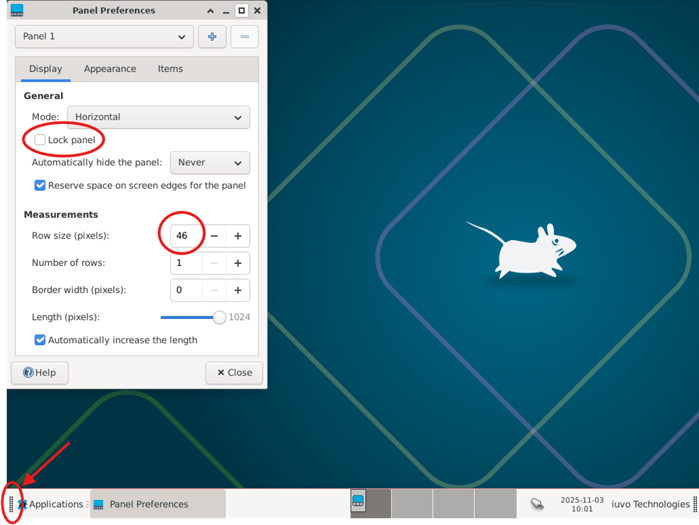
Once the panel is on the bottom, we should then lock it again.
Next, select Appearance and change the “Fixed icon size (pixels)”: from 16 to 26
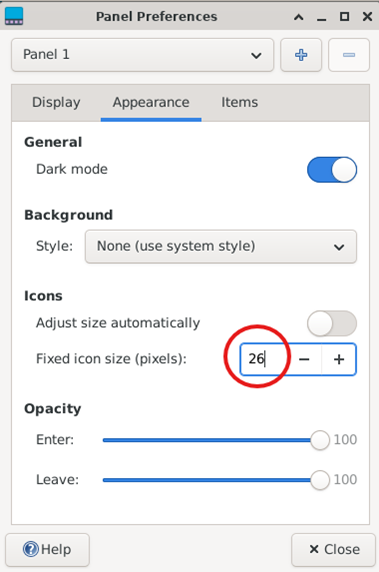
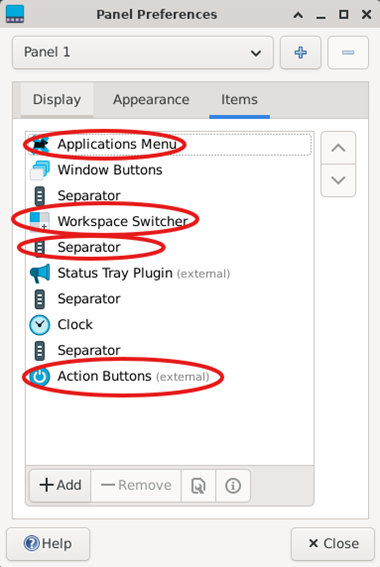
Then, moving on to the items section, remove the Applications Menu, Workspace Switcher,
the Separator after Workspace Switcher and Action Buttons.
Next, press the “+Add” button and add the “Whisker Menu”
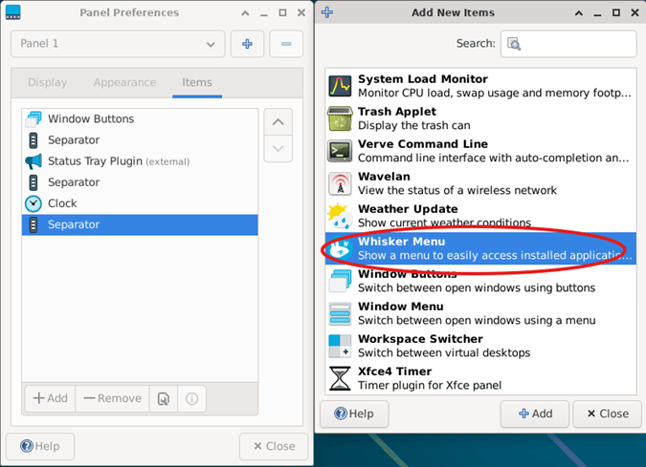
Press “x Close” and then move the Whisker Menu to the top of the list with the arrows on the right.
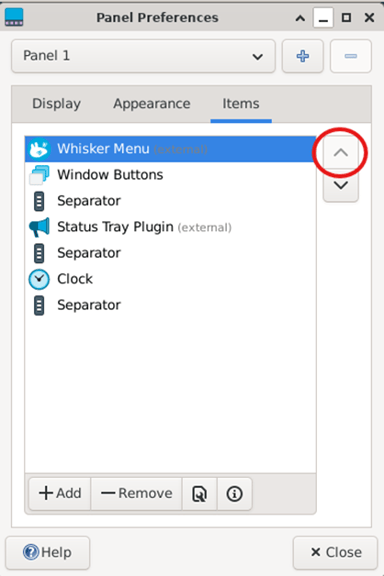
Next press “x Close”
Now we will customize the look to make it closer to Microsoft Windows.
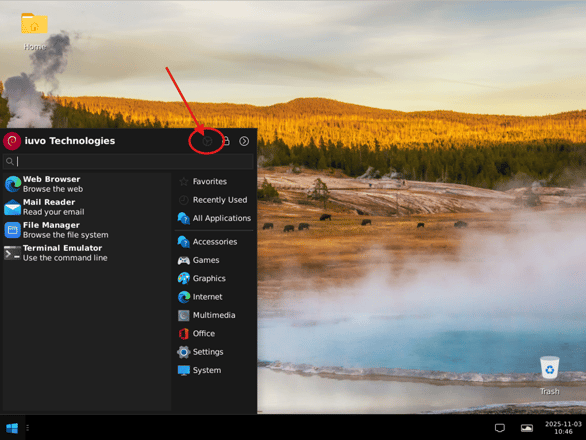
Click on the Whisker Menu, and then the Settings button:
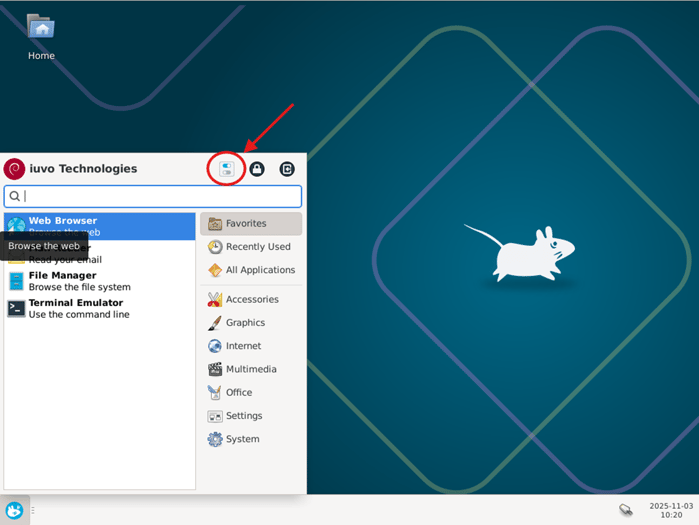
In Settings, select Appearance
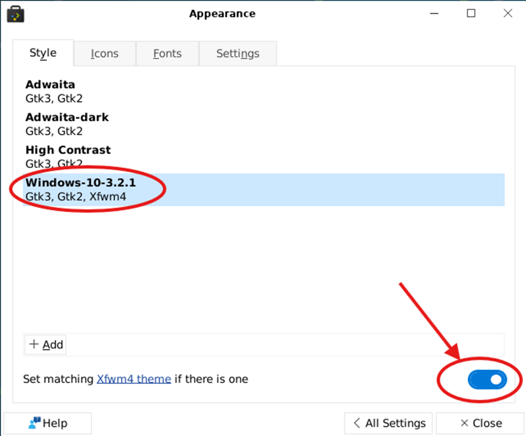
Then, under Style select Windows-10-3.2.1 and make sure “Set matching Xfwm4 theme if there is one” is enabled.
Under Icons, select We10X
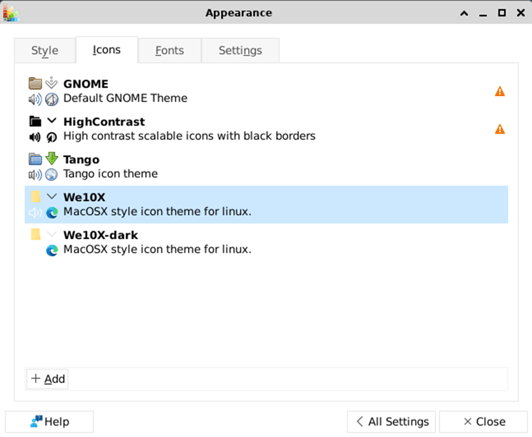
Now we can select “x Close” to close the Settings program.
Next, right-click on the Whisker menu and go to Properties – Appearance
Then press the Whisker Icon and change it to start-here
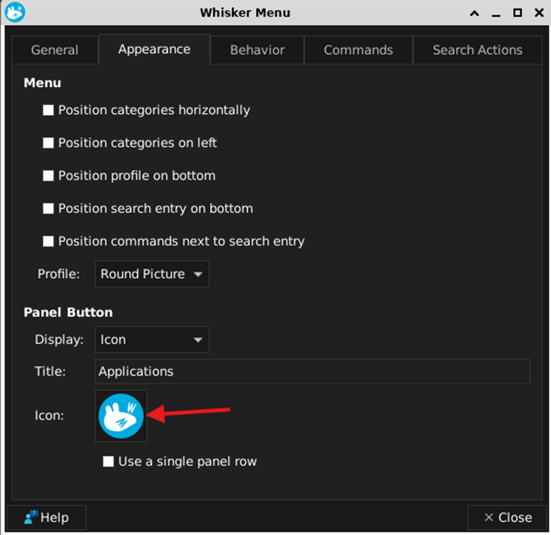
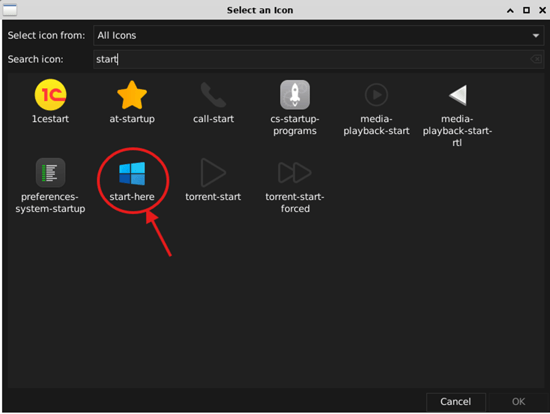
Then press “x Close”
Now we will use a program called Variety to set the screen background.
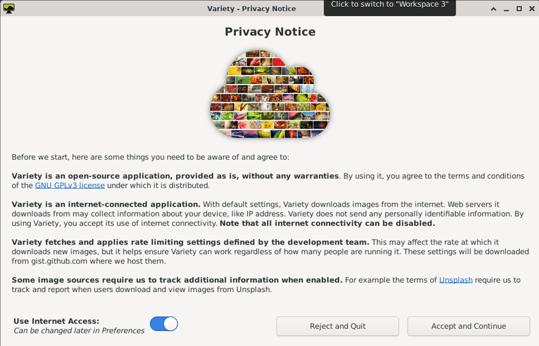
Go to the Start menu, Accessories, and run Variety.
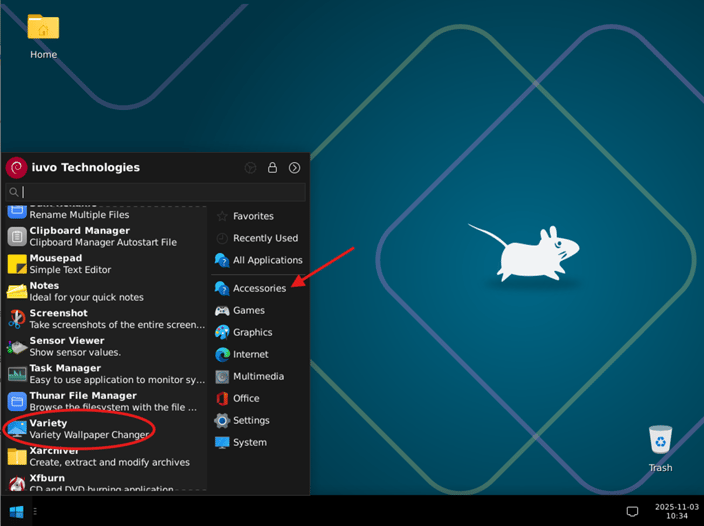
Select Continue
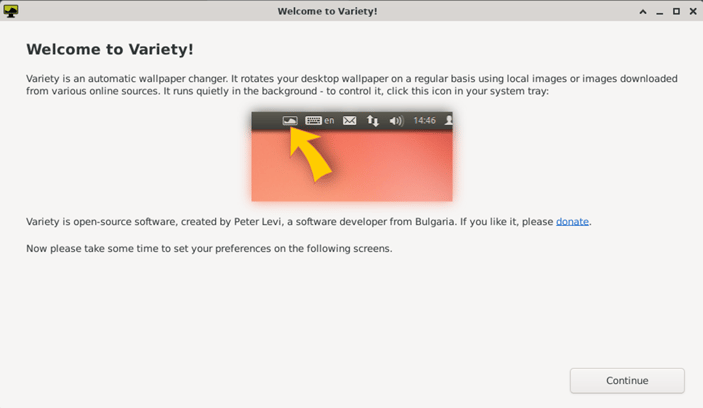
Make sure Use Internet Access: is checked, and click Accept and Continue
Under General select:
- Start Variety when the computer starts
- Change wallpaper every 1 days
- Fetched
- Bing
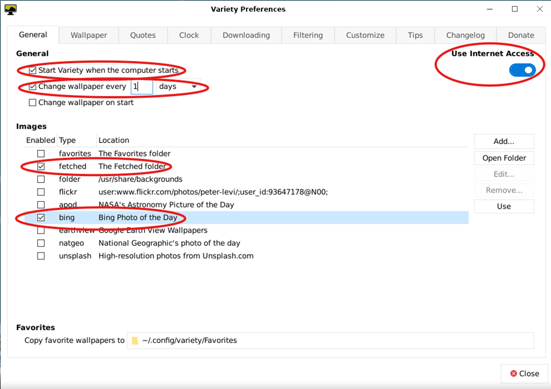
Then press “Close”
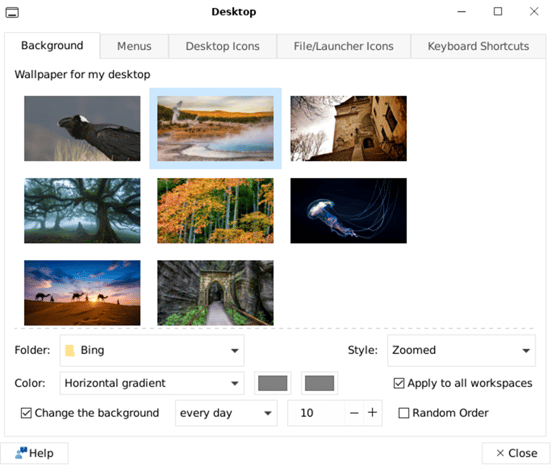
Next, right-click on the desktop, select Desktop Settings, the folder should be Bing and select Change the background every day, and then Close.
Finally, we will set the default applications, go to the Start Menu and Settings:
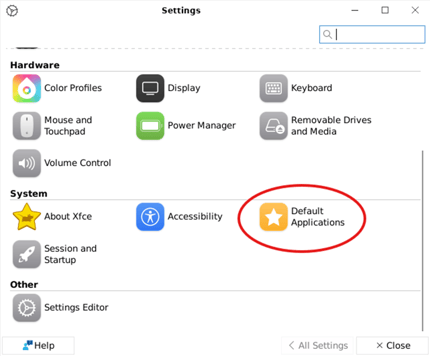
Now select the browser that works best for you. If you use Microsoft Edge, select Other and type in:
“/opt/microsoft/msedge/msedge”
Then press “x Close”
Conclusion
While there are a number of steps, we now have a system that, while certainly not Microsoft Windows, has a similar enough feel that, with some patience, a person should be able to navigate to what they need. There are also many other features and applications available for Debian Linux that are available, but beyond the scope of this already long blog post.
Need help navigating your Windows 10 transition or planning a secure, modern endpoint strategy? iuvo’s experts specialize in Microsoft modernization, lifecycle planning, and long-term platform strategy. If you want guidance on the right path for your environment, reach out to our experts today.
-2.png)